
Floyi 2.13.0
Bring Your Own Article to the Content Editor, Restore Any Draft Version, Sharper Draft Generation
The Content Editor now works just as well with content you wrote yourself as with content Floyi generates. Paste in your own article to run it through the Content Optimizer, image generation, schema markup, and the rest of the workspace — no Floyi draft required. You can also restore any earlier draft version to make it the one the editor focuses on, and our article writer and editor agents produce stronger first drafts.
✍️ Write It Myself — Bring Your Own Article
You no longer have to generate a Floyi draft to use the Content Editor. Choose Write it myself to open the editor with your own content and take full advantage of everything the workspace offers — the Content Optimizer, AI image generation, entity schema markup, the Research tab, and publishing.
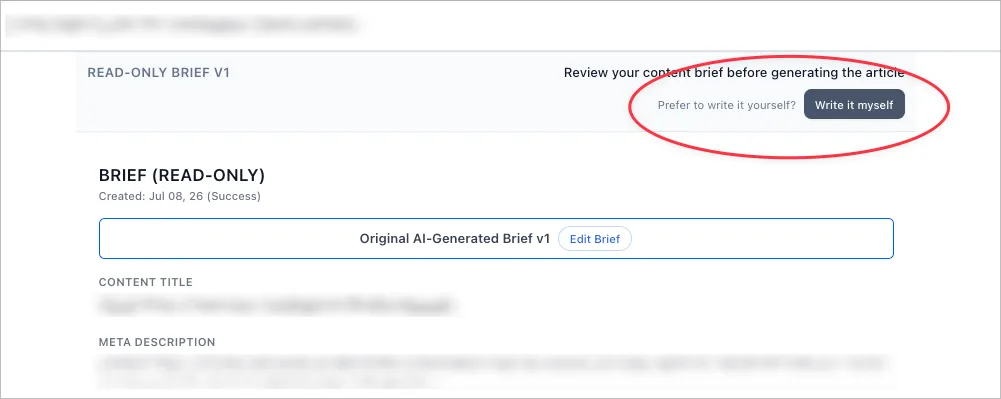
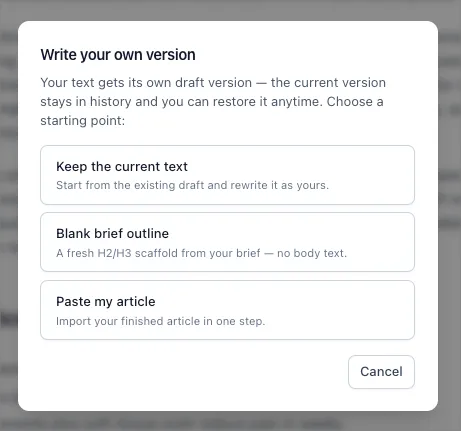
- Write it myself — start a draft from your own writing instead of a generated one. The editor opens unlocked and ready with the brief outline as a starting point.
- Paste your finished article in one step — already have a draft elsewhere? Paste it in and Floyi converts it into a fully editable article, preserving your headings, lists, and links.
- The full workspace, on your content — once your article is in, everything works the same: optimize against competitors and AI sources, generate images, add entity schema, and publish to WordPress or GitHub.
🕘 Restore Any Draft Version
The Content Editor keeps a full history of your drafts. Now you can bring any earlier version back as the working copy, so the editor — and every tool in it — focuses on exactly the draft you want to work on.
- Restore a previous draft — pick any version from the history and restore it to make it the active draft in the editor.
- Nothing is lost — restoring saves your current draft into version history first, so you can always move back and forth between versions.
- Review before you switch — selecting a version opens it in split view next to the editor, so you can compare before restoring.
🏷️ Renamed Strategic Intent — “Define (The Authority)”
The “Structure (The Architect)” strategic intent is now called “Define (The Authority)”. The name better reflects what it does — writing definitive, source-of-truth content with the clarity and semantic precision that AI models (LLMs) and search engines can parse, index, and cite. Existing briefs that used the old name continue to work automatically.
📝 Sharper Draft Generation
- Improved writer and editor agents — the article writer and editor prompts have been updated to produce stronger, more polished first drafts, so you start closer to publish-ready.
🛠️ Performance Improvements & Fixes
- Various performance improvements and bug fixes across the platform.