
Build a Topical Map in Google Sheets That Checks Itself
Build a four-level topical map in Google Sheets with a column layout, dropdowns and COUNTIF checks that catch orphans and level errors, plus where Sheets stops.
A Google Sheets topical map checks itself when every row carries a Topic ID, a Parent ID and a Level, and when helper formulas read those three columns. Without them, the sheet is a keyword list that looks organized until the first restructure. With them, a bad parent link shows up as a flag instead of a surprise in front of a client.
Most spreadsheet templates stop at keyword, intent, slug, and status. That layout can’t tell you that a hub points to a parent that was deleted, or that two rows target the same primary keyword. The build here fixes columns A to J, adds dropdown validation, then runs five helper formulas in columns K to O, with a sixth in P for slugs. COUNTIF and VLOOKUP catch duplicate IDs, orphans, level errors, childless hubs, and duplicate keywords.
A sheet has a ceiling, and the later sections mark it. Exact-match formulas can’t see two differently worded keywords that return the same search results, and internal links stay manual. Those limits decide when a one-person map is fine and when a multi-client map needs more.
Google Sheets Topical Map Key Takeaways
- Use one row per page, with a Topic ID and Parent ID tying each row to its parent.
- Fix columns A to J so every formula keeps pointing at the right data.
- Apply dropdown validation to Level, Search Intent, Funnel Stage, and Status before entering any rows.
- A custom COUNTIF rule on Parent ID rejects entries that match no existing Topic ID.
- Helper columns K to P flag duplicate IDs, orphans, level errors, childless hubs, and duplicate keywords or slugs.
- Saved filter views and protected ranges let writers work without breaking the hierarchy.
- Sheets can’t compare search results or track links, so move to a dedicated tool when editors or clients multiply.
How Do You Structure Columns for a Four-Level Topical Map?
To build a topical map in Google Sheets that checks itself, start with one row per page. Each row needs an ID that ties it to its parent, and every column a formula reads needs fixed values. Most spreadsheet templates stop at a list of columns such as keyword, intent, slug, and status. This sheet adds ID and level columns so it can check its own hierarchy.
The structure gives you a four-level topic hierarchy for SEO: Pillar (Level 1), Hub (Level 2), Branch (Level 3), and Resource (Level 4). A Home Coffee Brewing pillar might hold a Brewing Methods hub with a pour-over branch under it. That branch then holds a resource page for one specific query, such as “how to fix bitter pour-over coffee.” If you later move to dedicated topical map platforms, clean IDs and parents still give you a clear record to check the new map against.
Each row is one proposed or existing page, not one keyword. Secondary keywords that share the same search intent sit in that page’s row. Row count then equals planned page count, and sorting and filtering stay reliable.
Use exactly this letter layout, because every formula later in the article points at these columns:
| Column letter | Holds | Allowed values | Read by which check |
|---|---|---|---|
| A | Topic ID | P01, H01, B01, R01 | Duplicate-ID and parent-lookup checks |
| B | Parent ID | Blank for pillars, otherwise an existing Topic ID | Parent check |
| C | Level | 1 to 4 | Level check |
| D | Page Title | Free text | Manual review |
| E | Primary Keyword | One keyword per row | Duplicate-keyword check |
| F | Search Intent | Informational, commercial, transactional, navigational | Dropdown validation |
| G | Funnel Stage | TOFU, MOFU, BOFU | Dropdown validation |
| H | URL Slug | Lowercase, hyphenated text | Duplicate-slug check |
| I | Status | Planned, In progress, Published, Needs update | Status filters |
| J | Internal Links | Target Topic ID plus anchor text | Manual review |
Every row gets a unique Topic ID, and every non-pillar row stores its parent’s Topic ID in column B. Typed titles drift when a page is renamed, but IDs don’t, so hierarchy checks stay valid after edits.
The TOFU, MOFU and BOFU labels in column G tell writers what job each page does.
Optional columns belong to the right of the checks, from column S: secondary keywords, owner, target publish date, and live URL. Keep A to J fixed so you never rewrite a formula.
Column E is where target keyword mapping happens, and one primary keyword per page also protects you from keyword cannibalization. Two rows sharing a primary target would compete for the same query, and the duplicate-keyword check flags that before anyone writes a word.
How Do You Add Dropdowns and Validate Parent ID?
With the column layout fixed, Google Sheets data validation stops free-typed values from breaking your filters and formulas. A rule on the Parent ID column stops broken hierarchy links. Build both before you enter a single row. Select the column from row 2 down, open Data > Data validation, and apply each rule to the whole column so new rows inherit it.
Start with the Level column (C). Create a dropdown with the values 1, 2, 3, and 4, and name them in the header: Level (1 Pillar, 2 Hub, 3 Branch, 4 Resource). Plain numbers keep the level check formulas simple, and every structure check later in the build depends on this one column.
Next, add the remaining dropdowns:
- Search intent (F): Informational, commercial, transactional, navigational.
- Funnel stage (G): TOFU, MOFU, BOFU.
- Status (I): Planned, In progress, Published, Needs update.
With fixed values in place, a filter view for “commercial, BOFU” returns every matching row. Keep the status list short so the whole team uses it the same way.
Now protect the hierarchy. Select column B from row 2 down, choose Data > Data validation > Custom formula, and enter:
=AND(B2<>A2,COUNTIF($A$2:$A,B2)>0)Set it to Reject input, so a Parent ID that matches no Topic ID in column A can’t be entered, and a row can’t name itself as its own parent. Enter parents before children, because Reject input blocks a child row whose parent ID doesn’t exist yet. Validation doesn’t check blank cells, so the audit formulas in the next section catch missing parents.
Color-code status with conditional formatting in Google Sheets (Format > Conditional formatting). Choose “Text is exactly” and create four rules:
- Published: Green.
- In progress: Yellow.
- Planned: Light gray.
- Needs update: Orange.
Use this one scheme everywhere so progress reads at a glance.
Pasting over cells can wipe validation and formatting, especially after you move, delete or add rows. To restore the dropdowns without touching existing values, copy a validated cell, select the column from row 2 down, and use Edit > Paste special > Data validation only.
Which Formulas Check Your Hierarchy for Errors?
Five helper columns (K to O) turn the sheet from a plain list into a hierarchy that audits itself, and a sixth column, P, extends the same pattern to slugs. The formulas assume this layout: A is Topic ID, B is Parent ID, C is Level (1 to 4), E is Primary Keyword, and H is URL Slug. Put the checks in columns K to P and fill each one down from row 2. Every formula returns a blank on empty rows, so you can fill them far past your last page.
Start with column K, because duplicate IDs break every parent lookup that follows:
=IF(A2="","",IF(COUNTIF($A$2:$A,A2)>1,"DUPLICATE ID","OK"))Column L catches both orphan patterns: a blank parent on Levels 2 to 4, and a Parent ID that matches no Topic ID.
=IF(A2="","",IF(C2=1,IF(B2="","OK","PILLAR HAS PARENT"),IF(B2="","MISSING PARENT",IF(COUNTIF($A$2:$A,B2)=0,"ORPHAN","OK"))))The blank test comes first for a reason. COUNTIF on an empty value counts empty cells, so without that test a blank parent would slip through as a match.
Column M confirms that a child sits exactly one level below its parent. A missing or unknown parent returns CHECK PARENT instead of a raw #N/A.
=IF(OR(A2="",C2=1),"",IF(B2="","CHECK PARENT",IFERROR(IF(C2=VLOOKUP(B2,$A$2:$C,3,FALSE)+1,"OK","LEVEL ERROR"),"CHECK PARENT")))A row that names itself as its own parent can still arrive through a paste or CSV import, which skips validation. It passes column L and shows up only as LEVEL ERROR here.
Column N flags a pillar or hub with nothing under it, which is a coverage gap:
=IF(OR(A2="",C2>2),"",IF(COUNTIF($B$2:$B,A2)=0,"NO CHILDREN","OK"))Column O finds duplicate primary keywords:
=IF(E2="","",IF(COUNTIF($E$2:$E,E2)>1,"DUPLICATE KEYWORD","OK"))Column P applies the same pattern to column H to catch duplicate slugs:
=IF(H2="","",IF(COUNTIF($H$2:$H,H2)>1,"DUPLICATE SLUG","OK"))COUNTIF ignores case, so “Pour Over” and “pour over” are caught. Two differently worded keywords aimed at the same intent are not, so that call still needs your eyes.
COUNTIF also reads ? and * in a keyword as wildcards. A keyword like “best grind size?” matches “best grind sizes” and can raise a false DUPLICATE KEYWORD flag.
Color makes the flags hard to miss. Apply this custom formula to B2:B to highlight bad parents:
=AND($C2>1,OR($B2="",COUNTIF($A$2:$A,$B2)=0))Then select K2:P and add a second custom-formula rule that colors any cell that isn’t blank and isn’t OK:
=AND(K2<>"",K2<>"OK")Put a summary cell to the right of the helper columns, such as R1, so the flag total stays visible at a glance. It counts flags, not rows, so one broken row can add two or three:
=SUMPRODUCT((K2:P<>"")*(K2:P<>"OK"))Treat flagged rows as review prompts, not verdicts. A NO CHILDREN hub may be planned for next quarter, and a duplicate keyword may be a deliberate consolidation. Fix the structure where it’s broken, and the helper columns update as you edit.
How Do You Run the Sheet With Filtered Views and Writer Handoff?
Run the sheet through separate tabs, protected columns, saved filter views, and a per-hub handoff link. Everyone then works through saved views instead of editing the whole grid.
Start with the tab structure:
- Keyword Research: Your keyword research spreadsheet of raw terms, metrics, intent notes, and SERP observations. Leave it untouched so you can always return to the source keywords.
- Map: Columns A to P, where the four-level topical map lives.
- Link Plan: Add this only when internal links outgrow column J. It can hold source page, destination page, anchor text, link status, and reason.
Protect the Topic ID, Parent ID, Level, and helper columns through Data > Protect sheets and ranges, so only the map owner can restructure. Then freeze the header row and columns A to C (View > Freeze). ID, parent and level stay visible while you scroll, which keeps the site architecture readable at row 400.
Saved filter views do the daily work. Go to Data > Filter views > Create new filter view, then name each one so the team can open it by link. Unlike a shared filter, a filter view doesn’t change what other editors see. Useful views include:
- Hub views: One per hub. Filtering Parent ID shows a hub’s branches, so add an optional hub column if you also want its resources in the same view.
- Planned, BOFU: The queue for the next sprint.
- Published, needs update: Pages due for a refresh.
- Any check not OK: Rows failing a validation check. Set any column’s filter to Filter by condition > Custom formula is, then enter
=SUMPRODUCT((K2:P2<>"")*(K2:P2<>"OK"))>0.
Map internal links before anyone writes. In column J, record the target Topic ID and the anchor text for each planned link, so links survive slug changes. Each page links up to its parent first, then to two or three siblings. Anchors should describe the target page, and no two pages should use the same anchor for the same target.
For writer handoff, share the hub’s filter view link. Each row carries the title, primary keyword, intent, funnel stage, slug, and link targets. Writers update Status (I) only. After publishing, add the live URL and last updated date in the optional columns. When a client or writer needs the map outside the sheet, the options for sharing a finished map depend on who opens the file.
Where Does Google Sheets Stop Scaling for Topical Maps?
Google Sheets is free, flexible and a perfectly good home for a small map that one person owns. Free software still costs hours of upkeep, though, and what topical map tools really cost comes down to those hours weighed against a subscription. None of this makes a sheet a bad choice. It makes it a choice with a ceiling. If you hit that ceiling without a budget, free and open-source topical map tools sit between a spreadsheet and a paid platform.
The ceiling arrives when the map grows past what a single owner can keep consistent, and it shows up in five places:
- Clusters aren’t checked against search results: Keyword clustering for SEO depends on comparing results. COUNTIF catches exact duplicate keywords, but two differently worded keywords that return the same results still pass as separate pages. Catching that by hand means comparing results query by query.
- Internal links are kept by hand: When a page moves to another hub or a slug changes, every link cell that points to it needs updating. Nothing warns you when one gets missed.
- There’s no visual hierarchy: A grid hides depth. Lopsided pillars surface only through filtering, and pillars and hubs without children only through the NO CHILDREN check. Neither shows at a glance.
- Copies drift: Per-client, per-writer or per-quarter copies slowly diverge, and soon nobody can say which file is current.
- There’s no tie to briefs or performance: Status is self-reported, and the sheet can’t connect a row to its brief, its draft or how the page is doing.
The first two matter most for topical authority. A map is strongest when its coverage is distinct and its links follow the hierarchy, and a sheet still needs human review to confirm both.
When Should You Move to a Dedicated Topical Map Tool?
Keep the sheet while one person owns one map, and move once upkeep costs more than planning. Four triggers usually signal that point:
- More than one editor restructures the map.
- You run maps for several clients.
- Restructures break parent IDs and links every week.
- You need clusters checked against search results rather than by eye.
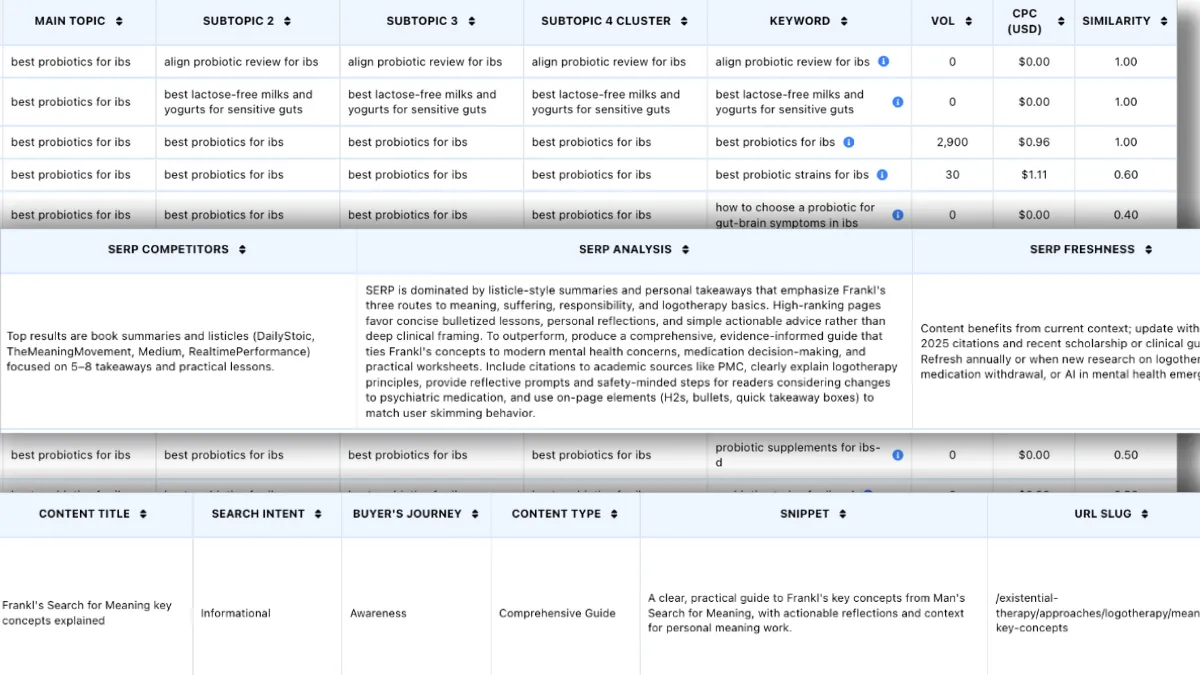
Floyi Topical Maps builds multi-level maps in a Pillar, Hub, Branch, and Resource structure, validated against search result data. Each map includes URL slugs, page intent, internal linking guidance, and anchor text recommendations. SERP Clustering groups keywords by actual search result overlap, so you stop judging overlap by eye. The map then anchors the briefs and drafts that follow, so the SEO content plan you build is the structure your writers receive.
The same map can be viewed three ways, which matters once a sheet gets long:
- Spreadsheet: The default view, laid out like the tab you already know.
- Silo View: Columns organized by main topic pillar.
- Outline View: A collapsible tree for moving through large maps.
Moving doesn’t mean leaving spreadsheets behind. Floyi maps export straight to Google Sheets, as well as XLSX and Markdown, so the handoff lands in a format your team already works in.
If your sheet has outgrown one editor and one client, build your next map in Floyi.
Google Sheets Topical Map FAQs
These answers cover the questions that come up most when building a Google Sheets topical map, from timing and article counts to CSV round trips and AI-drafted rows.
1. How Long Does a Google Sheets Topical Map Take?
It depends on scope, and building the sheet is the short part. Columns, dropdowns and check formulas go up quickly, while keyword research, clustering, hierarchy decisions, and internal link planning take most of the time. That work grows with the niche and the keyword count.
Clustering is the slowest step. When “how to clean a coffee grinder” and “cleaning a coffee grinder” return near-identical results, they share one row. Materially different results justify separate rows, and comparing them by hand is where the hours go.
2. How Many Articles Should a Topical Map Include?
There’s no fixed number. Each hub needs enough branches and resources to answer the questions its audience actually asks, so a narrow niche needs fewer pages than a broad one.
Your topical map spreadsheet helps you size and stage that coverage. The NO CHILDREN check flags pillars and hubs with nothing under them, which makes content gaps visible, and the Status column lets you roll pages out in stages. Rank rows by what buyers need at each funnel stage and by business fit, and use search volume only to break ties.
3. Can You Import a Topical Map as CSV?
Yes. In Google Sheets, use File > Download > Comma-separated values to export the current tab, and File > Import to bring a CSV back in. A round trip carries values only. Confirm every Topic ID is still unique, every Parent ID points to a real ID, and every dropdown entry still matches its list. Data validation, conditional formatting and helper formulas don’t travel, so reapply them and re-run your checks right after import.
Each CSV holds one tab, so a workbook exports tab by tab. Keep Topic IDs identical across the Keyword Research, Map and Link Plan files, and the links between them survive.
4. Can ChatGPT Fill Topical Map Rows in Sheets?
Yes, ChatGPT can draft hub and branch ideas and row values for your niche. Treat that output as a first draft for the Page Title and Primary Keyword columns, not a finished map.
AI groups topics by wording, not by what search results reward. Check each proposed page against live results. If two queries return near-identical results, they belong on one page, so “how to clean a coffee grinder” and “cleaning a coffee grinder” likely share a URL.
Next, paste the rows into your sheet and assign Topic IDs, Parent IDs and levels yourself. The parent, level and duplicate-keyword checks will then catch errors before anyone writes a word.
About the author

Yoyao Hsueh
Yoyao Hsueh is the founder and CEO of Floyi, the topical authority platform, and the founder of Main Heading, an SEO and AI search agency. He is an expert in topical authority and topical mapping. He created Topical Maps Unlocked, a course studied by thousands of SEOs, content strategists and digital marketers, founded TopicalMap.com, a done-for-you topical mapping service for agencies and enterprise teams, and publishes the weekly Digital Surfer newsletter on SEO, content strategy and AI search.
About Floyi
Floyi is a closed loop system for strategic content. It connects brand foundations, audience insights, topical research, maps, briefs, and publishing so every new article builds real topical authority.
See the Floyi workflow